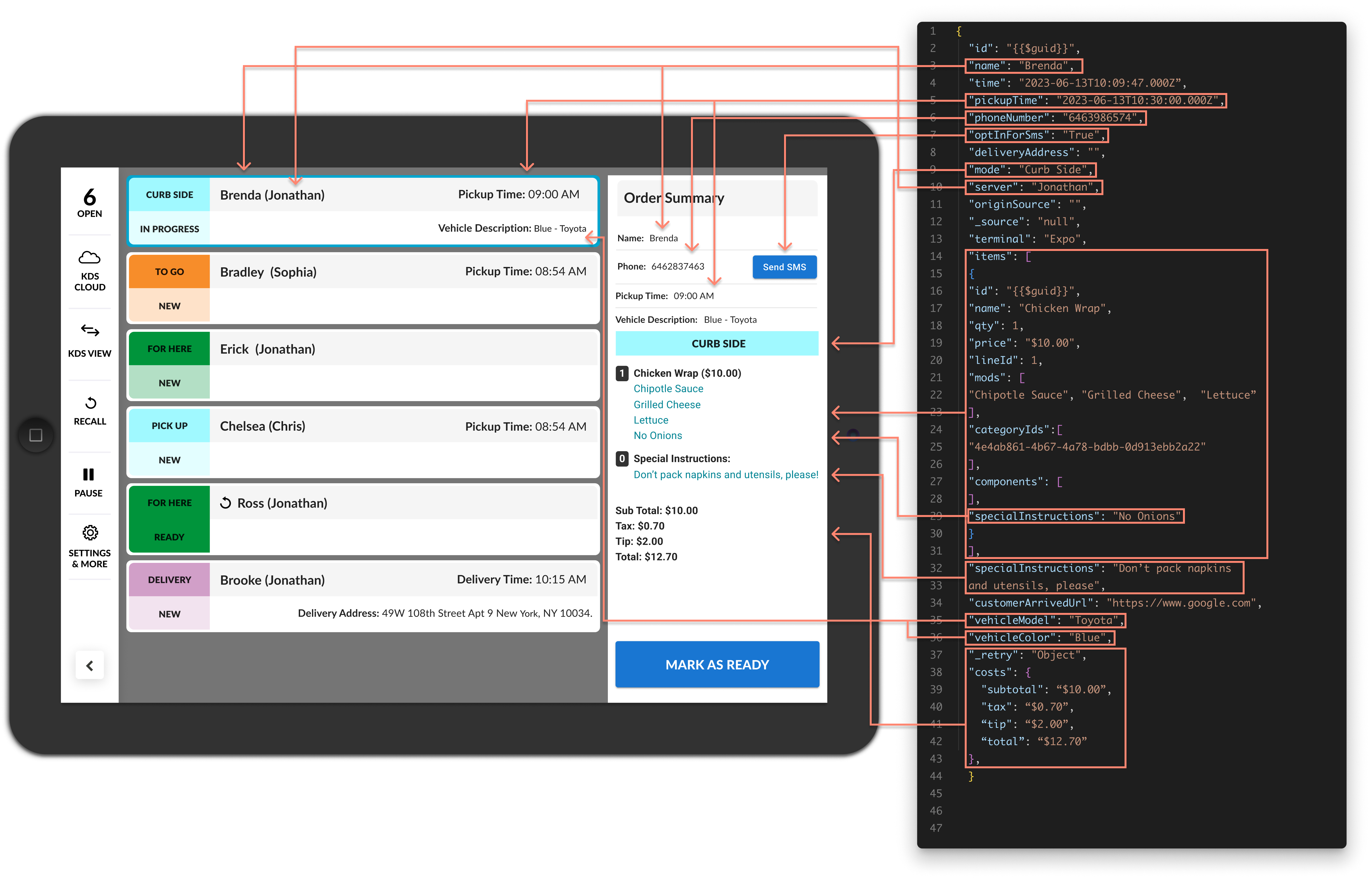
Sending Orders via TCP
Once you’ve established a connection to a KDS screen you can create/update/cancel KDS orders using TCP Port 9104.
Create KDS Order
Body Parameters
| Property | Required | Type | Description |
|---|---|---|---|
| command | yes | string | create-order |
| order | yes | Order | object containing KDS order data |
command property added in version 2.21.30, for backwards compatibility default value is create-order
Order
| Property | Required | Type | Description |
|---|---|---|---|
| id | yes | string | unique id of this KDS order |
| name | yes | string | order/customer name |
| time | yes | int | milliseconds since epoch |
| pickupTime | no | date | date/time for order pickup in ISO 8601 format |
| phoneNumber | no | string | customer phone number in E.164 format |
| optInForSms | no | bool | if false KDS will not message customer for this order; default is true |
| deliveryAddress | no | string | delivery address for order |
| mode | yes | string | accepted values: For Here, ToGo, Pickup, DriveThru, Delivery, Curbside |
| deliveryHandoff | no | bool | if mode is Delivery and this is true order will display as Delivery Handoff |
| server | no | string | name of employee creating the order |
| items | yes | KdsItem[ ] | array of menu items |
| terminal | no | string | POS terminal creating the order |
| specialInstructions | no | string | special instructions for the order |
| customerArrivedUrl | no | url | if present the URL will be added to the order received and order ready messages |
| vehicleModel | no | string | vehicle make and model |
| vehicleColor | no | string | vehicle color |
| costs | no | Costs | object with order costs |
| deliveryService | no | DeliveryService | object with delivery service information |
| originSource | no | string | optional parameter that gets appended to the order name |
| checkNumber | no | string | optional parameter that gets appended to the order name |
| priority | no | bool | if true order card will be flagged as priority and moved to front of queue |
| prepTimeDuration | no | ISO 8601 string | time it takes to prepare order; example: PT30M; only applied if auto hold future orders is on |
| covers | no | int | The number of covers/guests on the order. |
| loyaltyMember | no | bool | if true a badge will be displayed on the order card |
| onlineOrder | no | bool | if true the order was placed online; not displayed in the UI; use it to configure custom automations |
| isPaid | no | bool | if true the order is paid; not displayed in the UI; use it to configure custom automations |
KDS Item
| Property | Required | Type | Description |
|---|---|---|---|
| lineId | yes | string | must be unique; used for processing subsequent order update commands |
| name | yes | string | name of item |
| qty | yes | int | quantity of item |
| price | no | string | price of item; can include currency symbol |
| mods | yes | Modifier[ ] | array of item modifiers; send empty array for items without modifiers |
| specialInstructions | no | string | special instructions for item |
| course | no | string | course name/number of the item |
| courseStatus | no | string | valid values are “straightFire”, “hold”, “fire”, and “pickup” |
| seat | no | string | seat number of the item |
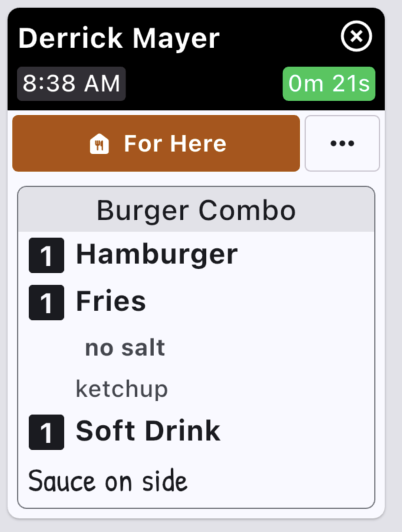
| itemGroup | no | ItemGroup | Include if this item belongs to an item group / combo. It’s a way to tie together items on the order card UI. |
Modifier
| Property | Required | Type | Description |
|---|---|---|---|
| name | yes | string | name of modifier |
| qty | no | int | Quantity of modifier. Shows on the order card if qty > 1. |
previously item.mods was a string[], which is still supported for backwards compatibility
Costs
| Property | Required | Type | Description |
|---|---|---|---|
| subtotal | no | string | subtotal of order |
| tax | no | string | tax on order |
| deliveryFee | no | string | delivery fee on order |
| surcharge | no | string | surcharge on order |
| convenienceFee | no | string | convenience fee on order |
| tip | no | string | tip on order |
| additionalFees | no | additionalFees[ ] | array of additional fees |
| total | no | string | total of order |
| promoCodes | no | promoCodes[ ] | array of promo codes on order |
all properties in the Costs object are strings and can include currency symbols for display
Additional Fees
| Property | Required | Type | Description |
|---|---|---|---|
| name | yes | string | name of fee |
| amount | yes | string | amount of fee; can include currency symbol |
Promo Codes
| Property | Required | Type | Description |
|---|---|---|---|
| name | no | string | name of promo code |
| amount | yes | string | amount of promo; can include currency symbol |
Delivery Service
| Property | Required | Type | Description |
|---|---|---|---|
| name | yes | string | name of delivery service |
| orderId | yes | string | delivery service order ID |
| driverPhone | no | string | delivery driver phone number in E.164 format |
Item Group
| Property | Required | Type | Description |
|---|---|---|---|
| id | yes | string | the id that will tie together multiple items on an order. |
| name | yes | string | the item group name that will display on the order cards. |
| note | no | string | optional field to include a note for the item group. Displays at the bottom of the group. |
All properties of an itemGroup should be the same for all items in the group. Items of the same group cannot be split on KDS. This means that the course, seat, and courseStatus of items in the same group must be the same. Unexpected behavior may occur if not.
Example payload included on each item in the group:
"itemGroup": {
    "id": "1",
    "name": "Burger Combo",
    "note": "Sauce on side"
}
Example Json Payload
{
    "command": "create-order",
    "order": {
        "id": "123",
        "name": "John Doe",
        "time": "2026-01-01T12:00:00.000Z",
        "pickupTime": "2026-01-01T13:00:00.000Z",
        "mode": "Pickup",
        "items": [
            {
                "lineId": "1",
                "name": "Hamburger",
                "qty": 1,
                "mods": [
                    {
                        "name": "No Ketchup",
                        "qty": 1
                    },
                    {
                        "name": "Side Fries",
                        "qty": 1
                    }
                ],
                "course": "Course 1",
                "seat": "Guest 1",
                "courseStatus": "fire"
            },
            {
                "lineId": "2",
                "name": "Vanilla Shake",
                "qty": 1,
                "mods": [],
                "course": "Course 2",
                "seat": "Guest 1",
                "courseStatus": "hold"
            }
        ]
    }
}
Responses
| Response Type | Response Value |
|---|---|
| Success | order.id value |
| Failure | Unable to parse data |
| Failure | DUPLICATE_ORDER_ID - An order with the same order.id is on the screen or is on hold |
Update KDS Order
Overview
After sending a KDS order to a screen you can update the content of the order using the update-order command and supplying the updated order payload. You will need to re-send the entire order payload, including fields that have not changed.
The lineId property is used to add, update, or delete menu items. To delete menu items from an order remove the item’s lineId from the items array. To add menu items to an order add an additional item with a new lineId to the items array.
Body Parameters
| Property | Required | Type | Description |
|---|---|---|---|
| command | yes | string | update-order |
| order | yes | Order | object containing KDS order data |
Example
{
    "command": "update-order",
    "order": {
        "id": "123",
        "name": "Jane Doe",
        "time": "2026-01-01T12:00:00.000Z",
        "pickupTime": "2026-01-01T13:00:00.000Z",
        "mode": "Pickup",
        "items": [
            {
                "lineId": "1",
                "name": "Hamburger",
                "qty": 1,
                "mods": [
                    {
                        "name": "No Ketchup",
                        "qty": 1
                    },
                    {
                        "name": "Side Fries",
                        "qty": 1
                    }
                ],
                "course": "Course 2",
                "seat": "Seat 1",
                "courseStatus": "fire"
            },
            {
                "lineId": "2",
                "name": "Chocolate Shake",
                "qty": 1,
                "mods": [],
                "course": "Course 3",
                "seat": "Seat 1",
                "courseStatus": "hold"
            },
            {
                "lineId": "3",
                "name": "Onion Rings",
                "qty": 1,
                "mods": [
                    {
                        "name": "BBQ Sauce",
                        "qty": 1
                    }
                ],
                "course": "Course 1",
                "seat": "For Table",
                "courseStatus": "fire"
            }
        ]
    }
}
Responses
| Response Type | Response Value |
|---|---|
| Success | order.id value |
| Failure | Unable to parse data |
| Failure | ORDER_DOES_NOT_EXIST - The order.id sent in the update request does not exist on the device |
Screen Behavior
- An updated order shows with an edited icon in the header
- Added items appear with a
+icon - Updated items appear with a
editicon - Removed items appear with a
xicon and items are struckthrough
Partially Update KDS Order
Overview
After sending a KDS order to a screen you can update the content of the order using the partial-update-order command and supplying a payload of properties to update. A partial order update does not require all order properties to be included in the body request. This request should include only the properties that you wish to change. This may be helpful if your system operates on an eventual consistency model, where the order state may not be immediately synced between terminals. Using partial updates, you may rely on the KDS to manage the final order state.
Body Parameters
| Property | Required | Type | Description |
|---|---|---|---|
| command | yes | string | partial-update-order |
| order | yes | Partial KDS Order | object containing KDS order data |
Partial KDS Order
| Property | Required | Type | Description |
|---|---|---|---|
| id | yes | string | unique id of this KDS order. Must match the id from the original create request. |
| name | no | string | order/customer name |
| mode | no | string | accepted values: For Here, ToGo, Pickup, DriveThru, Delivery, Curbside |
| pickupTime | no | date | date/time for order pickup in ISO 8601 format |
| phoneNumber | no | string | customer phone number in E.164 format |
| server | no | string | name of employee creating the order |
| specialInstructions | no | string | special instructions for the order |
| vehicleModel | no | string | vehicle make and model |
| vehicleColor | no | string | vehicle color |
| priority | no | bool | if true order card will be flagged as priority and moved to front of queue |
| deliveryAddress | no | string | delivery address for order |
| deliveryService | no | DeliveryService | object with delivery service information |
| costs | no | Costs | object with order costs |
| originSource | no | string | third party order source |
| checkNumber | no | string | optional parameter that gets appended to the order name |
| deliveryHandoff | no | bool | if mode is Delivery and this is true the order will display as Delivery Handoff |
| prepTimeDuration | no | ISO 8601 string | time it takes to prepare order; example: PT30M; only applied if auto hold future orders is true |
| itemsToAdd | no | KdsItem[ ] | array of menu items to add to the order |
| itemsToUpdate | no | KdsItem[ ] | array of menu items to update on the order |
| itemsToRemove | no | string[ ] | array of lineId’s to remove from the order |
| covers | no | int | The number of covers/guests on the order. |
| loyaltyMember | no | bool | if true a badge will be displayed on the order card |
| onlineOrder | no | bool | if true the order was placed online; not displayed in the UI; use it to configure custom automations |
| isPaid | no | bool | if true the order is paid; not displayed in the UI; use it to configure custom automations |
- The only required property is
id itemsToAdd: Uses the providedlineIdon the Item to determine if this is a new Item on the order. DuplicatelineId’s will be ignored.itemsToUpdate: Uses the providedlineIdon the Item to determine which Items to update on the order. NonexistentlineId’s will be ignored. Include all item properties when updating - partial item updates are not supported.itemsToRemove: Takes an array oflineIdto determine which Items to remove from the order. NonexistentlineId’s will be ignored.
IMPORTANT: Only include order properties that should be updated. If a property is included on the request it will attempt to overwrite it on the order. Either send properties as null or do not include them in the body at all.
Example
Update the order name and add an item to the order already on the KDS screen. Both of these requests are valid and yield the same result:
{
    "command": "partial-update-order",
    "order": {
        "id": "123",
        "name": "New order name",
        "mode": null,
        "pickupTime": null,
        "phoneNumber": null,
        "server": null,
        "specialInstructions": null,
        "vehicleModel": null,
        "vehicleColor": null,
        "priority": null,
        "deliveryAddress": null,
        "deliveryService": null,
        "costs": null,
        "originSource": null,
        "checkNumber": null,
        "deliveryHandoff": null,
        "prepTimeDuration": null,
        "covers": null,
        "loyaltyMember": null,
        "onlineOrder": null,
        "isPaid": null,
        "itemsToAdd": [
            {
                "lineId": "3",
                "qty": 1,
                "name": "Hamburger",
                "mods": [
                    {
                        "name": "no tomato",
                        "qty": 1
                    }
                ]
            }
        ],
        "itemsToUpdate": null,
        "itemsToRemove": null
    }
}
OR
{
    "command": "partial-update-order",
    "order": {
        "id": "123",
        "name": "New order name",
        "itemsToAdd": [
            {
                "lineId": "3",
                "qty": 1,
                "name": "Hamburger",
                "mods": [
                    {
                        "name": "no tomato",
                        "qty": 1
                    }
                ]
            }
        ]
    }
}
Responses
| Response Type | Response Value |
|---|---|
| Success | order.id value |
| Failure | Unable to parse data |
| Failure | ORDER_DOES_NOT_EXIST - The order.id sent in the update request does not exist on the device |
Screen Behavior
- An updated order shows with an edited icon in the header
- Added items appear with a
+icon - Updated items appear with a
editicon - Removed items appear with a
xicon and items are struckthrough
Cancel KDS Order
Overview
After sending a KDS order to a screen you can cancel the order using the cancel-order command and supplying the order’s id value.
Body Parameters
| Property | Required | Type | Description |
|---|---|---|---|
| command | yes | string | cancel-order |
| order | yes | Cancel Order | object containing KDS order data |
command property added in version 2.21.30, for backwards compatibility default value is create-order
Cancel Order
| Property | Required | Type | Description |
|---|---|---|---|
| id | yes | string | unique id of the KDS order to update |
Example
{
	"command": "cancel-order",
	"order": {
		"id": "123"
	}
}
Responses
| Response Type | Response Value |
|---|---|
| Success | order.id value |
| Failure | Unable to parse data |
| Failure | ORDER_DOES_NOT_EXIST - The order.id sent in the cancel request does not exist on the device |
Screen Behavior
- if the KDS order is still displayed on the KDS screen it will change to the Cancelled state
Test Sending Orders Using Packet Sender
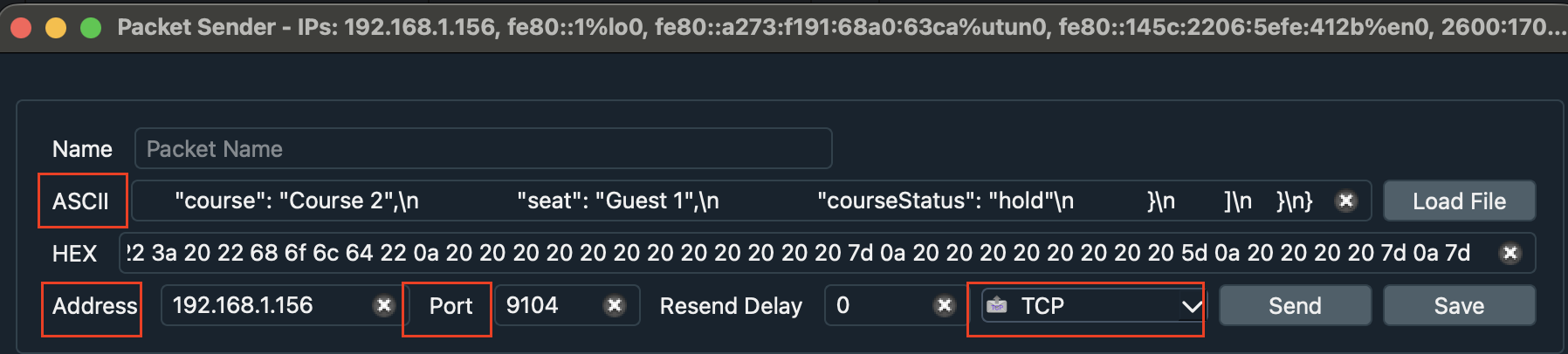
You can use a program like Packet Sender to test sending/updating orders on Fresh KDS.
- Download packet sender using the link above
- Open the Fresh KDS app on your tablet and obtain the device IP address.
Settings > General > Ip Address - Open packet sender and fill out information to route an example order to Fresh KDS
- Copy and paste the example order json into the ASCII field
- Enter the IP Address as the Address
- Enter 9104 as the Port
- Select TCP as the protocol
- Hit Send. If successful, you will see the order appear on the KDS screen. Note the possible success/failure responses.
Examples of Object Mapping to KDS Screens
KDS Order
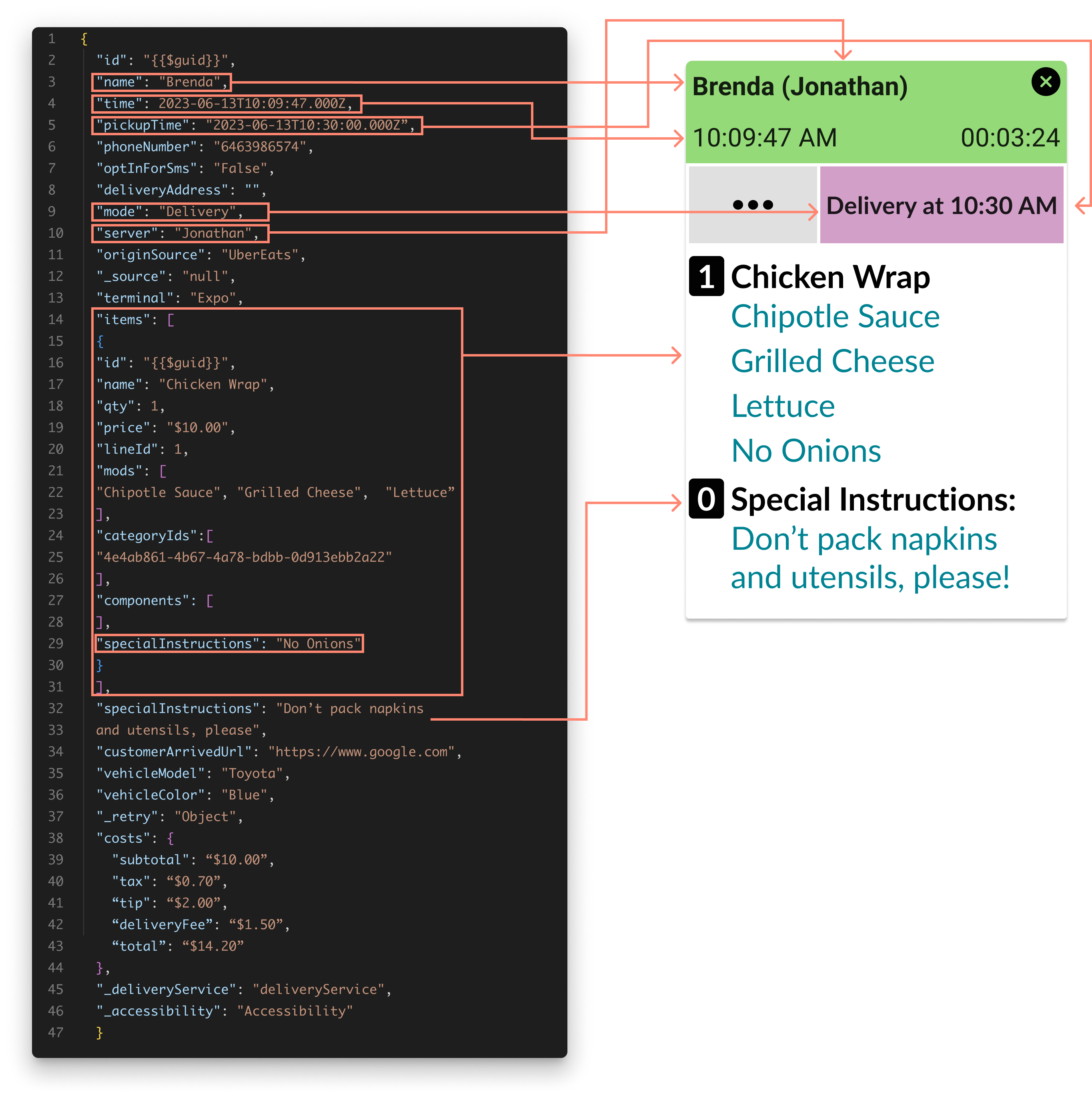
Take Out Order - Delivery
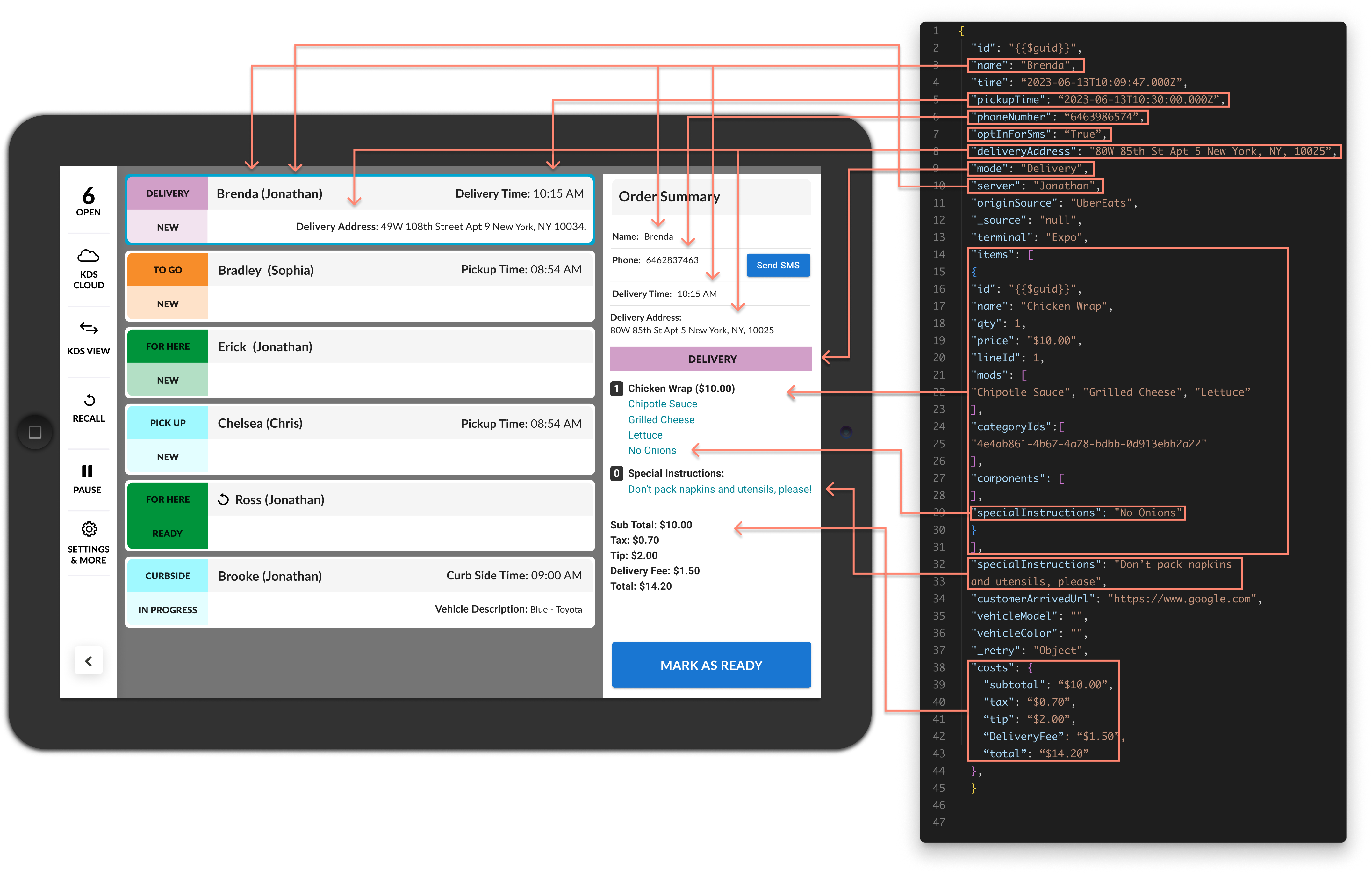
Take Out Order - Curbside